See your roster and swap a shift
Check your shifts for the next four weeks, and swap or give away a shift with a colleague.
For staff who work shifts. Your roster shows here once your branch has published it.
-
1
Open My roster
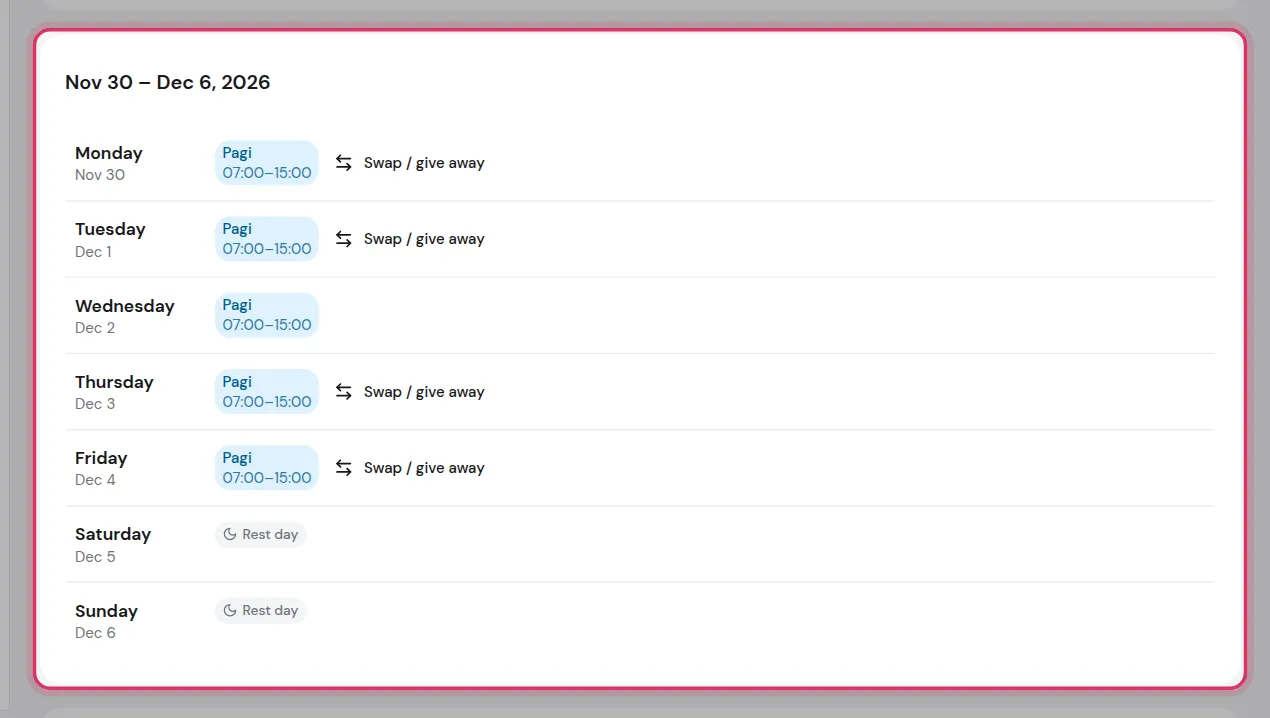
Click My roster in the menu. Each day shows your shifts and their hours, rest days, leave and public holidays, with today highlighted. Your dashboard also shows today’s shifts under On your roster.
-
2
Ask for a swap
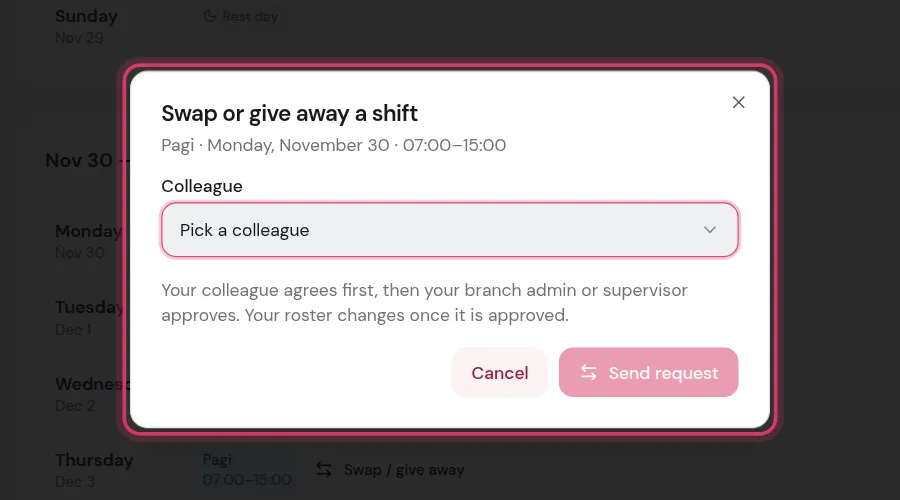
Next to a shift that hasn’t started yet, click Swap / give away. Pick the Colleague, then under In return one of their shifts, or Nothing: they take my shift to give yours away. Click Send request.
-
3
Follow your request
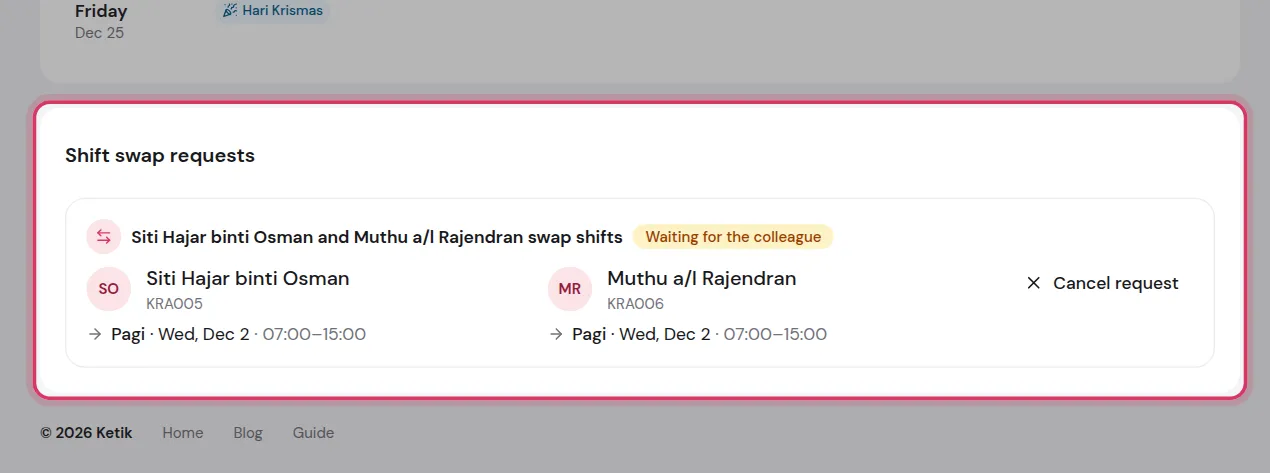
Your requests are listed under Shift swap requests. First your colleague agrees, then your branch admin or supervisor approves: your roster changes only once it is approved. Changed your mind? Click Cancel request while it is still open.
-
4
Answer a colleague
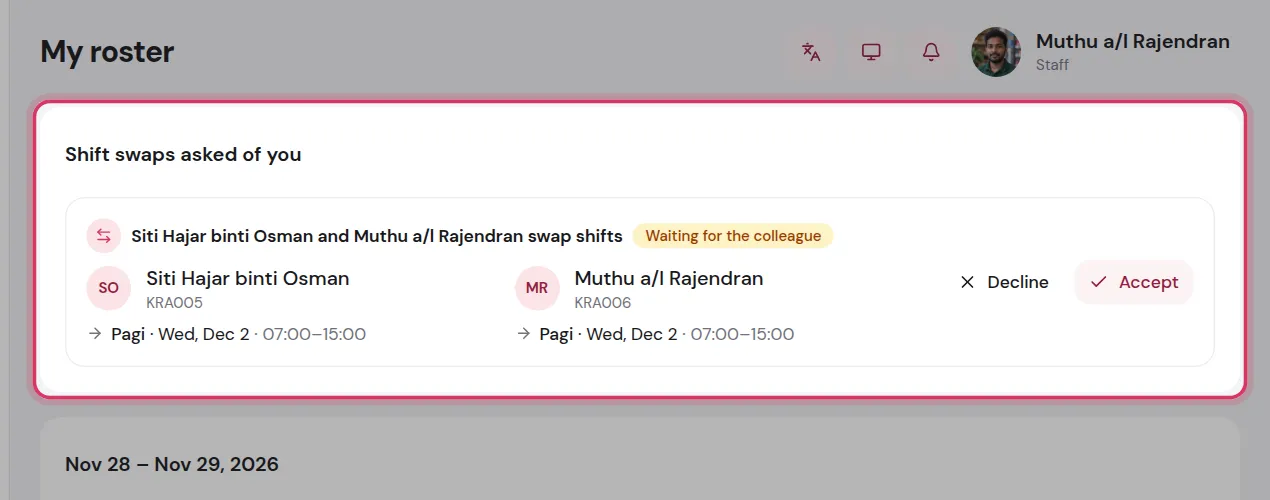
When a colleague asks you, their request shows at the top under Shift swaps asked of you, and your phone gets a notification. Click Accept or Decline, then confirm.
Was this guide helpful?