Apply for leave
Check how many days you have left and send a leave application to your supervisor.
-
1
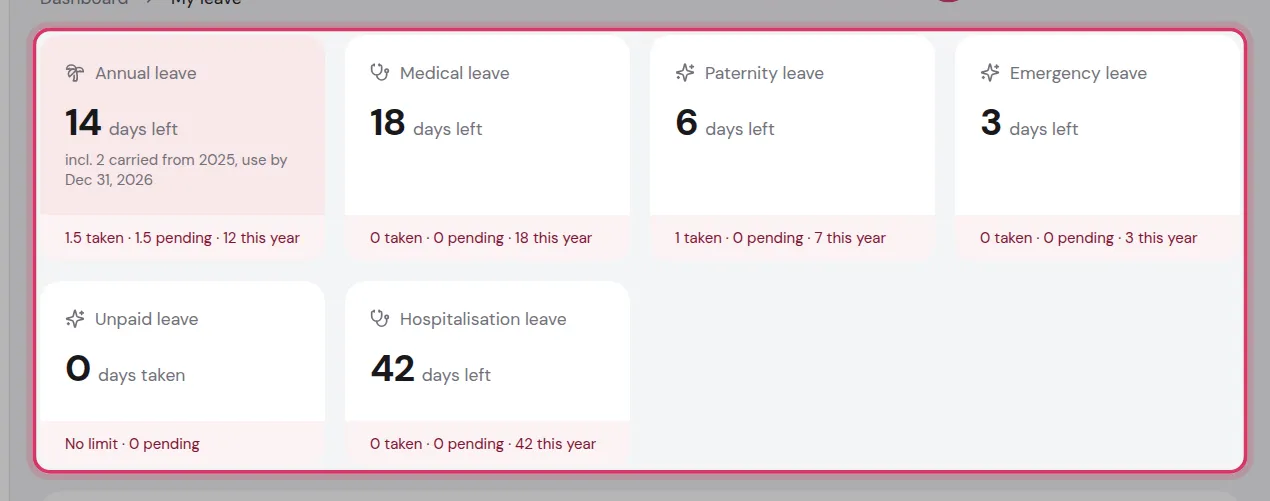
Check your balance
Open My leave. Each card shows the days you have left this year for that kind of leave.
-
2
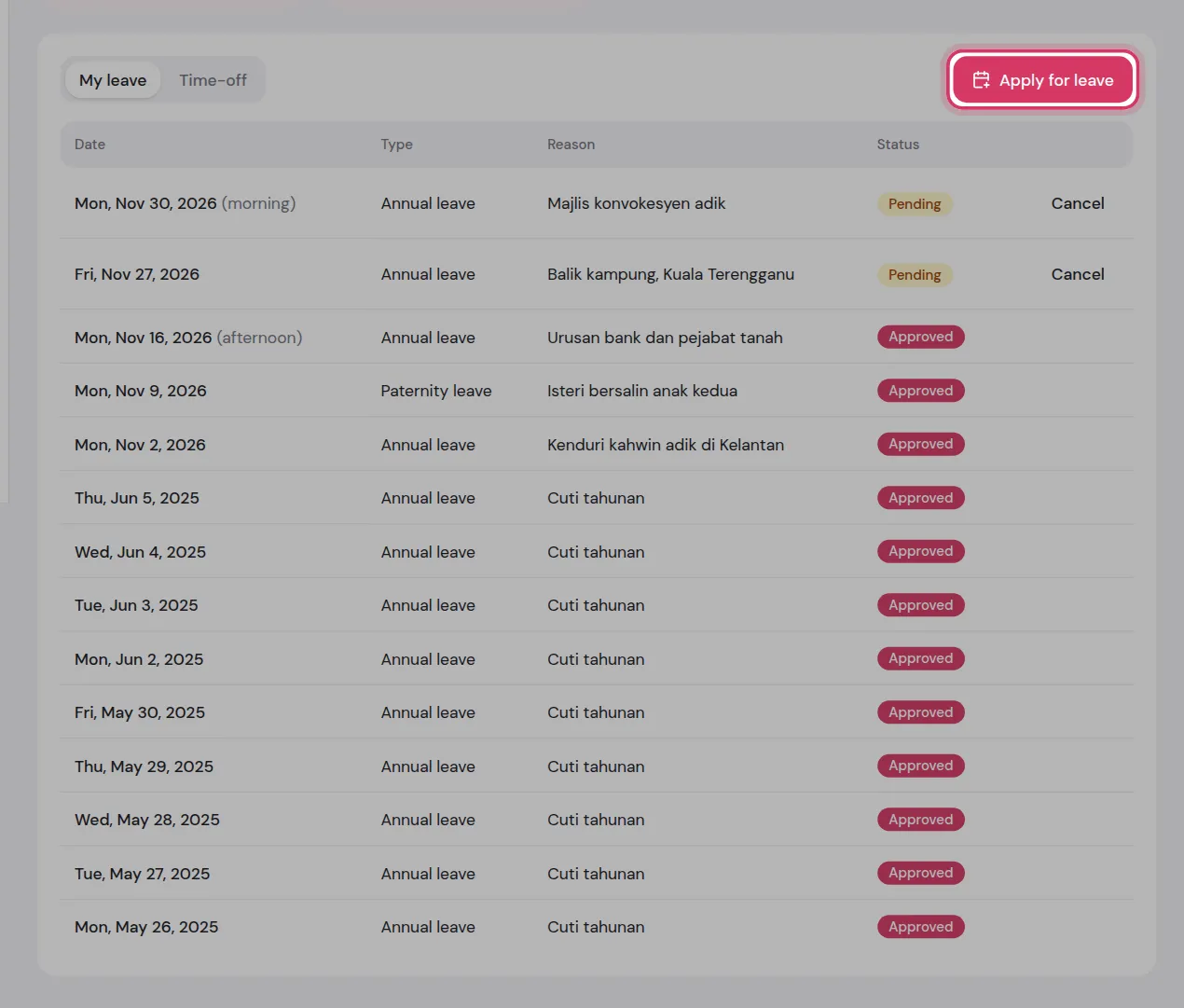
Click Apply for leave
The button is above your list of applications.
-
3
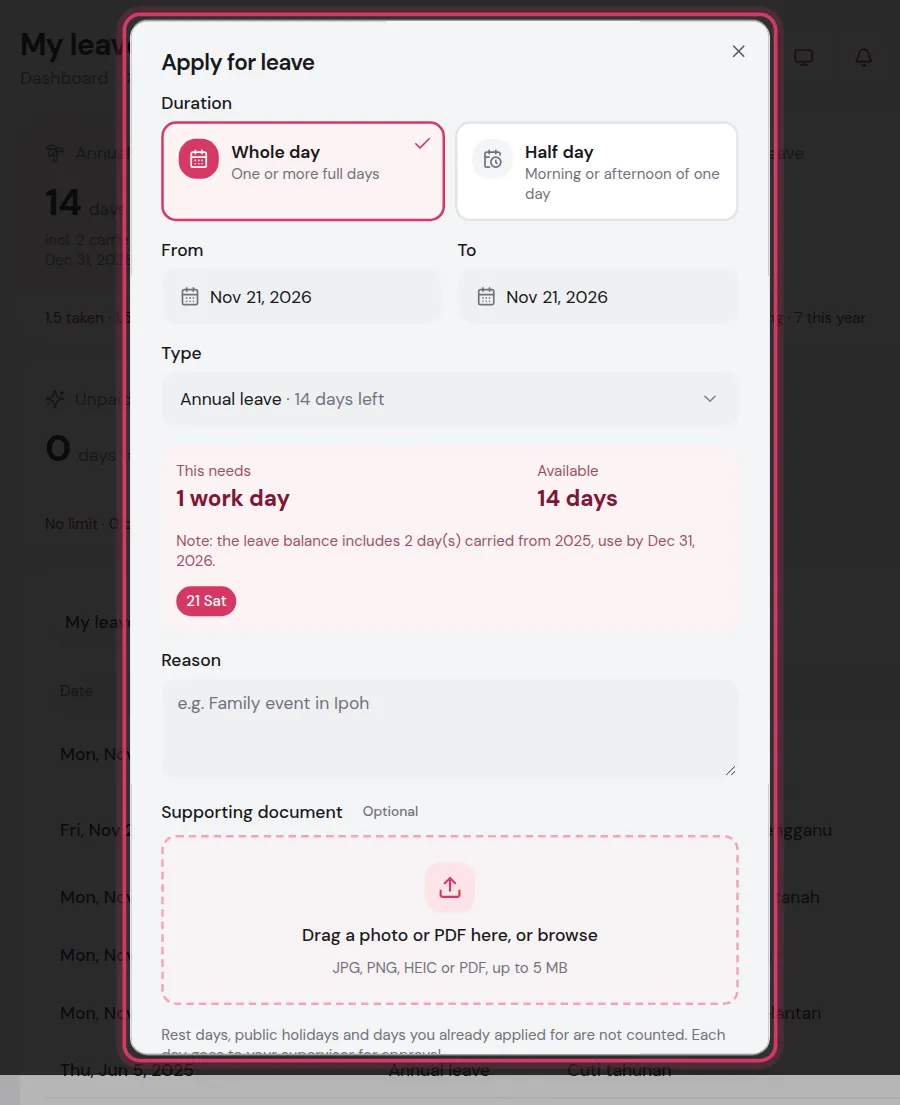
Fill in the form
Pick the leave type, the first and last day, and a short reason. Ketik shows how many days it needs: rest days and public holidays are not counted.
Need only part of a day? Choose Half day, then Morning or Afternoon, and one date: it counts as half a day. On fixed hours you work the other half: with an afternoon off from a 9:00, 8-hour day you clock out at 13:00.
Have a supporting document, like an MC? Drag the photo or PDF onto the Supporting document box, or tap it to take a photo on your phone (one file, up to 5 MB). Some leave types, usually medical leave, show Required: the application can’t be sent without it.
You only see the leave you can take: maternity and paternity leave show for married staff, from the details on your staff profile.
-
4
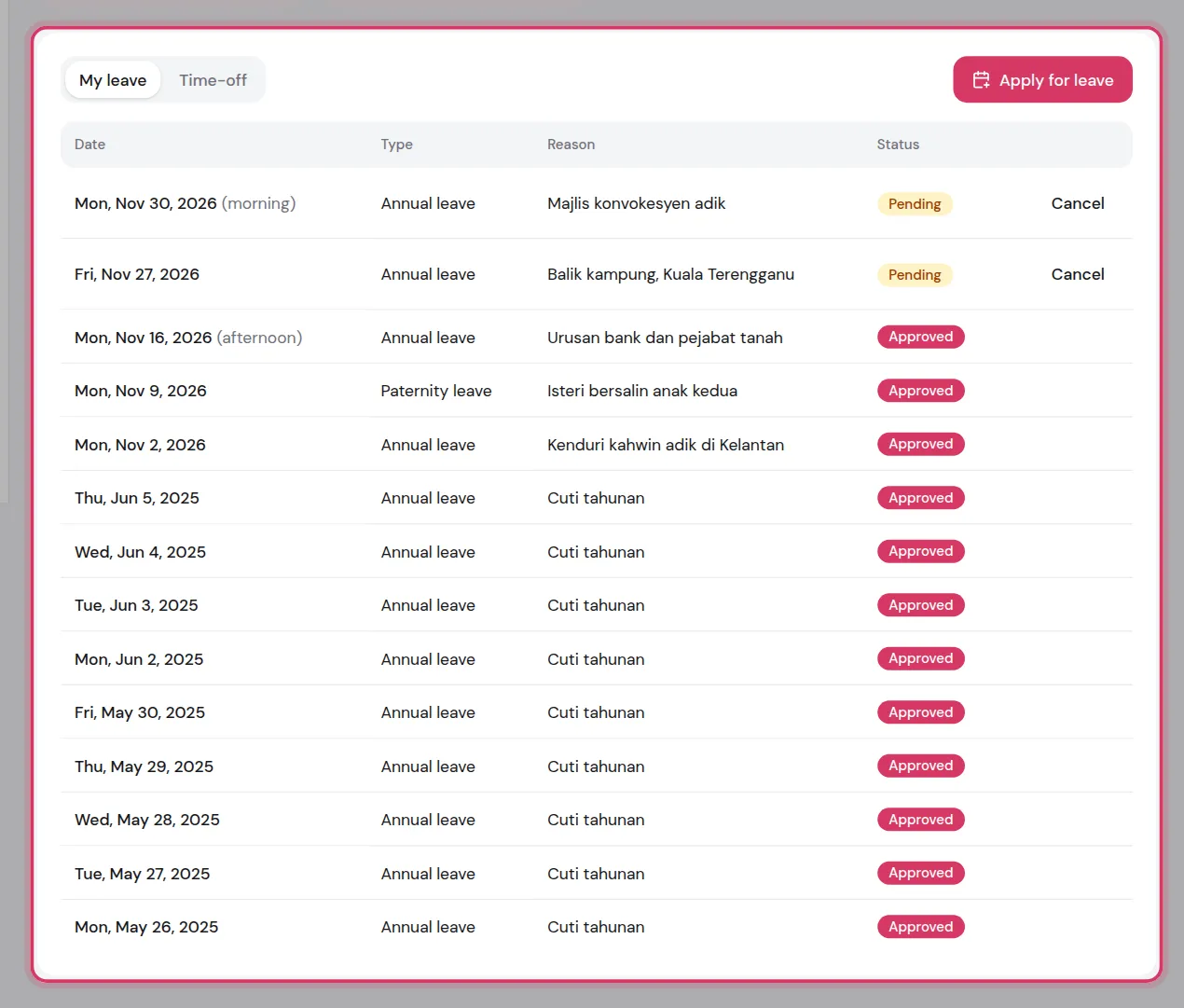
Send and track it
Click Send for approval. Your application shows as Pending until your supervisor approves or rejects it. You can cancel a pending one: click Cancel on it and confirm.
Was this guide helpful?